
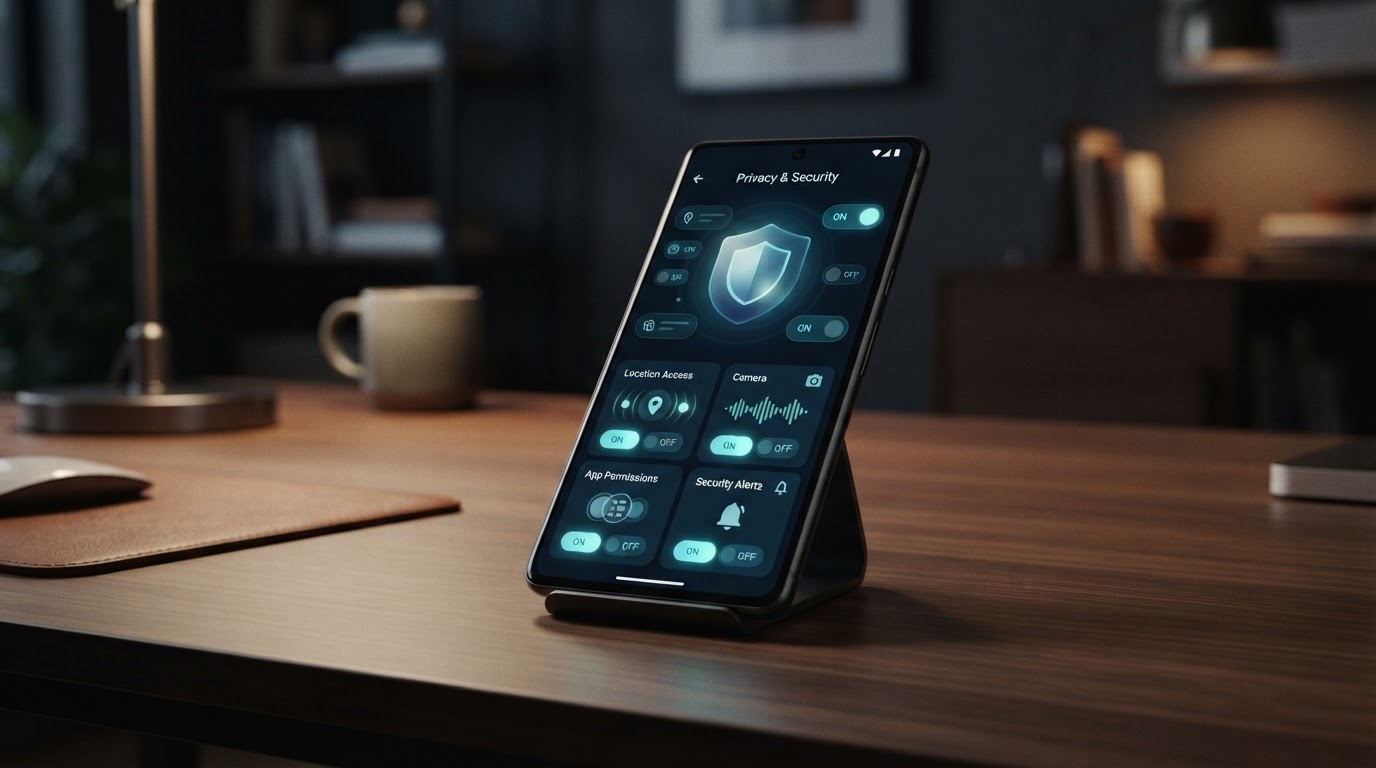
Your phone knows a lot about your daily routine. The good news is that Android gives you useful controls to decide which apps can access sensitive information. You do not need another app to start improving your privacy.
1. Review app permissions
Open Settings → Privacy → Permission manager. Check location, camera, microphone, contacts and photos. Remove access from apps that do not genuinely need it.
2. Use approximate location
When an app does not need your exact position, choose approximate location where available. Review background location access separately.
3. Check microphone and camera access
Android versions with privacy indicators show when these sensors are active. Review recent access in the Privacy Dashboard.
4. Turn on account protection
Use a unique password and two-step verification for your Google account. Keep recovery details current.
5. Reduce lock-screen exposure
Hide sensitive notification content on the lock screen, especially OTPs and banking alerts.
6. Remove apps you no longer use
Uninstall unfamiliar or unused apps, and install updates from trusted sources only.
Quick checklist
Start with permissions and account security. Menu names vary by Android version and phone maker, so use Settings search if a path looks different.
Which tip would you add? Share your experience in the comments and send this guide to someone who may find it useful.