

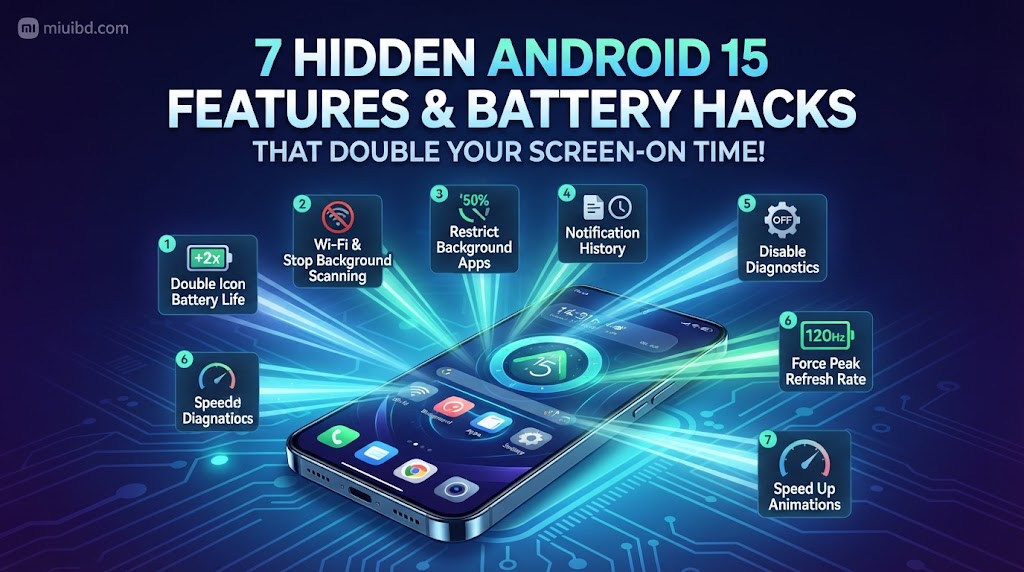
Is your Android phone losing 15–20% battery overnight, or feeling laggy during daily use? Even on brand-new Xiaomi, Redmi, and POCO devices running HyperOS or stock Android, default system settings prioritize continuous background data logging and aggressive analytics over battery life.
By tweaking a few hidden developer options and notification settings, you can stop background battery drain, free up RAM, and unlock hidden UI customization features.
Here are 7 high-impact hidden Android settings you should turn off or enable right now.
1. Disable “Mobile Data Always Active” in Developer Options
- The Problem: By default, Android keeps your mobile data connection active in the background even when connected to Wi-Fi so network switching feels faster. This constantly drains battery as your modem stays powered up.
- The Fix:
- Go to Settings > About Phone and tap Build Number (or OS/MIUI Version) 7 times to enable Developer Options.
- Go to System > Developer Options (or Additional Settings > Developer Options).
- Scroll down to Networking and toggle OFF
Mobile data always active.
2. Block Hidden Background Scanning (Wi-Fi & Bluetooth)
- The Problem: Your phone continuously scans for nearby Wi-Fi networks and Bluetooth devices 24/7, even when your Wi-Fi and Bluetooth toggles are switched off.
- The Fix:
- Go to Settings > Location > Location Services.
- Tap on Wi-Fi scanning and turn it OFF.
- Tap on Bluetooth scanning and turn it OFF.
3. Restrict Unused Apps from Waking Up in Background
- The Problem: Social media apps, shopping apps, and games run background services that ping servers constantly for non-essential notifications.
- The Fix:
- Open Settings > Apps > Manage Apps.
- Select an app you don’t need real-time notifications for (e.g., shopping or utility apps).
- Tap Battery Saver / Battery usage and change it to Restrict background activity (or Optimized).

4. Enable Hidden Notification History (Never Lose Dismissed Alerts)
- The Feature: Accidental swipes can clear an important notification or WhatsApp message before you read it. Android includes a built-in logger that saves every notification for 24 hours.
- The Fix:
- Go to Settings > Notifications > Notification History.
- Toggle ON
Use notification history. - Now, any swiped-away alert can be viewed anytime from this menu.
5. Turn Off Usage & Diagnostics Auto-Reporting
- The Problem: Background processes periodically bundle telemetry logs and send them back to Google and phone manufacturers, wasting bandwidth and battery.
- The Fix:
- Go to Settings > Google > Services > Usage & diagnostics.
- Toggle OFF
Share usage & diagnostics data.
6. Force Peak Refresh Rate Without Dynamic Throttling
- The Feature: Many display panels dynamically throttle down to 60Hz when playing games or browsing specific apps, causing visible stuttering.
- The Fix:
- Go to Settings > Display > Refresh Rate.
- Select Custom and set it to your panel’s maximum (120Hz or 144Hz).
- Inside Developer Options, check
Force peak refresh rateif you want zero dynamic drops during gaming.
7. Speed Up System Animations for Instant App Switching
- The Feature: Scale down transitions to make older or mid-range devices feel twice as fast instantly.
- The Fix:
- Inside Developer Options, scroll to the Drawing section.
- Change Window animation scale, Transition animation scale, and Animator duration scale from
1xdown to0.5x.
💡 Summary
Making these minor setting adjustments reduces unnecessary background CPU wakeups (wakelocks) and stops hidden battery drains without losing any essential app functionality.
Which hidden Android setting helped your phone the most? Drop your phone model and current battery SOT (Screen-On Time) in the comments below!